

If your advisor is using Microsoft Teams to host your meetings, this quick guide can help you join anytime, anywhere, from any device. Accessing the meeting is a simple process and all you need is a link.
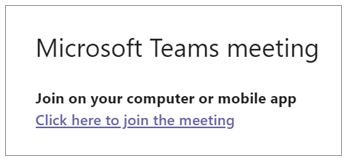
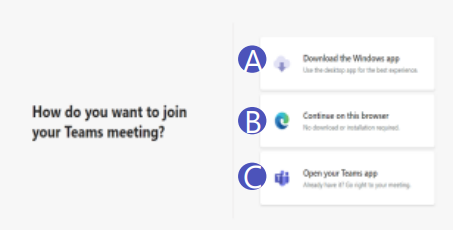
Select Click here to join the meeting in your meeting invite to be taken to a page where you can choose to:
1.) Download the app (A)
2.) Join on the Web instead (B); or
3.) Open in the Teams app if you have previously downloaded it before (C)
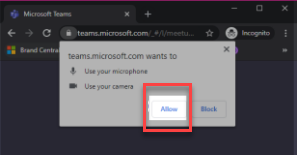
If you choose to Join on the Web, you will then see a screen which will request access to the microphone and camera on your computer. Select allow.
Then you will need to input your name and select the Join Now button. Please note that you will have the option to turn off your camera and/or mute yourself during the meeting (if needed) prior to and during the meeting.
To leave a meeting, select the Red Phone “Leave” button.
NOTE: Teams can be accessed through Mac, iOS, Android and Windows devices.
If you’re unable to use the Teams app or Teams on the web, you can join some meetings by calling a phone number. If there’s a phone number and conference ID in the meeting invite, just dial the number to join.
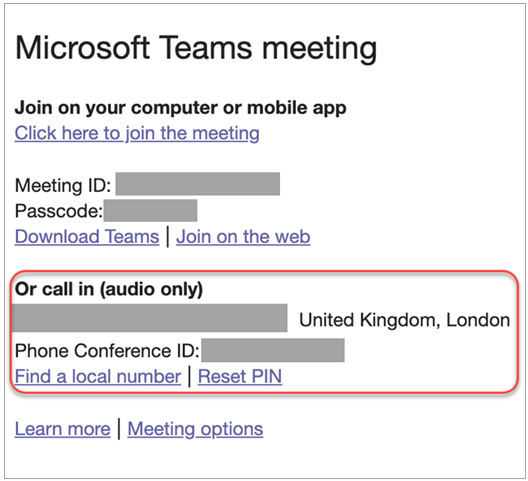
The number in your invitation may not be local to you. Select Find a local number to get one that is.
To get the best of Teams meetings on mobile, including audio, video, and content sharing, you’ll need to download and install the Teams mobile app. This app is available for download on both Apple iOS and Android.
TIP: If you would like to use the app, we recommend downloading the app before your meeting starts. It may take a few minutes to set up, depending on your internet connection.
