Categories
Technology

How do add approved senders in my email?

Approved Senders (safe senders) are people and domains you always want to be able to receive email messages from. Safe recipients are recipients that you don’t want to block, usually groups that you’re a member of. Messages received from any email address or domain in your safe senders and recipients list are never sent to your Junk Email folder.


IMPORTANT: The server that hosts your mailbox may have junk email filtering settings that block messages before they reach your mailbox.

1. Sign in to Outlook Web App. For help, see Getting started in Outlook Web App.


2. At the top of the page, select SettingsMail.


3. Under Options, select Block or allow.


4. To add an entry to Safe senders and recipients, enter the email address or domain that you want to mark as safe in the Enter a sender or domain here text box, and then press Enter or select the Add icon + next to the text box.


  • For example, to mark all email from addresses that end in contoso.com as safe, enter contoso.com in the text box.
  • To mark a specific person as safe, enter that person’s full email address. For example, to mark all messages from KatieJ@contoso.com as safe, enter KatieJ@contoso.com in the text box.


5. (Optional) Select the Trust email from my contacts check box to treat email from any address in your contacts folders as safe.


6. Select Save to save your changes.


To add a Safe Sender within your Gmail account, you will need to add a filter to notify the system to allow particular email type or senders to flow through to your inbox.


How to create a filter in Gmail:

  1. Open Gmail.
  2. In the search box at the top, click the Down arrow Down arrow
  3. Enter your search criteria. If you want to check that your search worked correctly, see what emails show up by clicking Search. 
  4. At the bottom of the search window, click Create filter
  5. Choose what you’d like the filter to do.
  6. Click Create filter.


Note: When you create a filter to forward messages, only new messages will be affected. ​Additionally, when someone replies to a message you’ve filtered, the reply will only be filtered if it meets the same search criteria. 


How to use a particular message you receive to create a filter:

  1. Open Gmail.
  2. Check the checkbox next to the email you want. 
  3. Click More More
  4. Click Filter messages like these.
  5. Enter your filter criteria.
  6. Click Create filter.
 

Adding contacts to your trusted Yahoo sender list is fairly simple as your Contact List is simultaneously your Yahoo email safe sender list.


  1. Open the email sent to you by the contact you wish to label as safe. Be sure to check both the inbox folder and junk or spam folder.

  2. Copy the email address

  3. Click the Contacts icon located in the upper right-hand corner of your Yahoo! Mail Inbox Homepage. When you scroll over the first icon, it should say ‘Contacts’.

  4. Click ‘Add a new contact’ located below the list of your contacts.

add email to safe senders list gmail

  1.  Fill in the contact details and paste the email address you wish to add to your contact list.

  2.  Click Save.


Learn More in Technology

Categories
Technology

How to Join a Virtual Teams Meeting

If your advisor is using Microsoft Teams to host your meetings, this quick guide can help you join anytime, anywhere, from any device. Accessing the meeting is a simple process and all you need is a link.

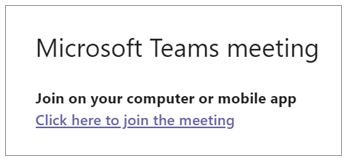
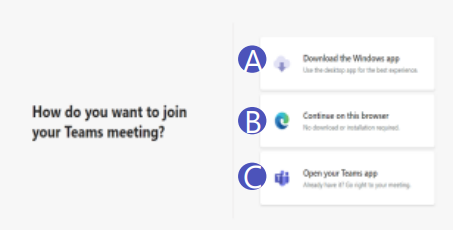
Select Click here to join the meeting in your meeting invite to be taken to a page where you can choose to:

1.) Download the app (A)

2.) Join on the Web instead (B); or

3.) Open in the Teams app if you have previously downloaded it before (C) 

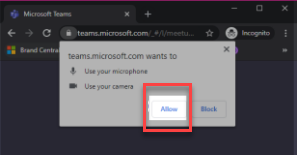
If you choose to Join on the Web, you will then see a screen which will request access to the microphone and camera on your computer. Select allow.

Then you will need to input your name and select the Join Now button. Please note that you will have the option to turn off your camera and/or mute yourself during the meeting (if needed) prior to and during the meeting.


To leave a meeting, select the Red Phone “Leave” button.


NOTE: Teams can be accessed through Mac, iOS, Android and Windows devices.


How to Call Into a Virtual Teams Meeting

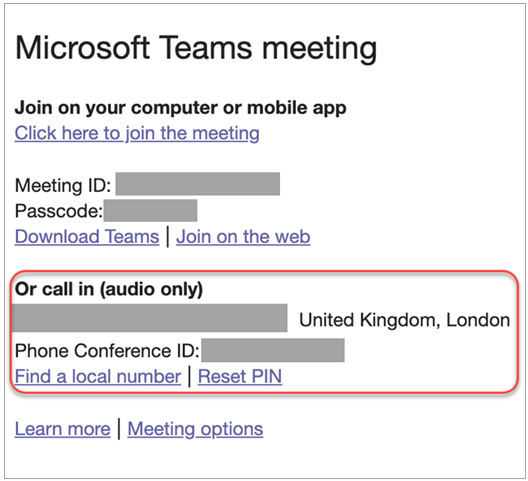
If you’re unable to use the Teams app or Teams on the web, you can join some meetings by calling a phone number. If there’s a phone number and conference ID in the meeting invite, just dial the number to join.

The number in your invitation may not be local to you. Select Find a local number to get one that is.


How to Access the Teams App

To get the best of Teams meetings on mobile, including audio, video, and content sharing, you’ll need to download and install the Teams mobile app. This app is available for download on both Apple iOS and Android.


TIP: If you would like to use the app, we recommend downloading the app before your meeting starts. It may take a few minutes to set up, depending on your internet connection.


Learn More in Technology