Categories
Online Safety Tips

I think I may have been scammed. What should I do now?


I think I may have been scammed. What should I do now?

Scammers are good at what they do, and they are very good at extracting highly personal and secure information. They will sound professional and knowledgeable. They may also give you what appears to be a legitimate web address, a real business address, and charity information that sounds valid. It is not uncommon to fall victim to charity scams, so it is important to know what to do if you have.


Start by making an assessment of the situation:

Prevention Resources

What to do if you suspect a scam or if you’re the victim of a scam:

IMMEDIATELY contact your financial advisor or contact Schwab Alliance at (800) 515-2157

Learn more about scams:

LEARN MORE IN ONLINE SAFETY

Categories
Online Safety Tips

I want to make a donation, but how do I make sure I’m sending my contribution the right way?


I want to make a donation, but how do I make sure I'm sending my contribution the right way?

Once you have concluded your research and chosen a charity, here are tips for safely making a contribution:


Safety Tips:

Things to Keep an Eye Out For:

Once you have made your donation, keep a record and monitor your bank account and credit card statements. You’ll want to confirm that you were charged the correct amount and that you have not been signed up for recurring donations. Additionally, for tax purposes, you will need a receipt of your donation, so be sure to get this from the charity upon payment.


LEARN MORE IN ONLINE SAFETY

Categories
Online Safety Tips

Is it safe to donate to an organization who asks for a contribution over the phone?


Is it safe to donate to an organization who asks for a contribution over the phone?

Not all calls made for charitable contributions are a scam, but it is very important to perform some due diligence before you donate. Remember, you are not obligated to make a contribution at that moment, and you can take some time to do your research before making that decision.


Pre-Research Questions to Ask:

Things to Keep an Eye Out For:


LEARN MORE IN ONLINE SAFETY

Categories
FAQ Helpful Information

How do add approved senders in my email?


How do I add approved senders to my email?

Approved Senders (safe senders) are people and domains you always want to be able to receive email messages from. Safe recipients are recipients that you don’t want to block, usually groups that you’re a member of. Messages received from any email address or domain in your safe senders and recipients list are never sent to your Junk Email folder.


IMPORTANT: The server that hosts your mailbox may have junk email filtering settings that block messages before they reach your mailbox.


1. Sign in to Outlook Web App. For help, see Getting started in Outlook Web App.

2. At the top of the page, select SettingsMail.

3. Under Options, select Block or allow.

4. To add an entry to Safe senders and recipients, enter the email address or domain that you want to mark as safe in the Enter a sender or domain here text box, and then press Enter or select the Add icon + next to the text box.

  • For example, to mark all email from addresses that end in contoso.com as safe, enter contoso.com in the text box.
  • To mark a specific person as safe, enter that person’s full email address. For example, to mark all messages from KatieJ@contoso.com as safe, enter KatieJ@contoso.com in the text box.

5. (Optional) Select the Trust email from my contacts check box to treat email from any address in your contacts folders as safe.

6. Select Save to save your changes.


To add a Safe Sender within your Gmail account, you will need to add a filter to notify the system to allow particular email type or senders to flow through to your inbox.

How to create a filter in Gmail:

  1. Open Gmail.
  2. In the search box at the top, click the Down arrow Down arrow
  3. Enter your search criteria. If you want to check that your search worked correctly, see what emails show up by clicking Search. 
  4. At the bottom of the search window, click Create filter
  5. Choose what you’d like the filter to do.
  6. Click Create filter.

Note: When you create a filter to forward messages, only new messages will be affected. ​Additionally, when someone replies to a message you’ve filtered, the reply will only be filtered if it meets the same search criteria. 

How to use a particular message you receive to create a filter:

  1. Open Gmail.
  2. Check the checkbox next to the email you want. 
  3. Click More More
  4. Click Filter messages like these.
  5. Enter your filter criteria.
  6. Click Create filter.
 

Adding contacts to your trusted Yahoo sender list is fairly simple as your Contact List is simultaneously your Yahoo email safe sender list.

  1. Open the email sent to you by the contact you wish to label as safe. Be sure to check both the inbox folder and junk or spam folder.

  2. Copy the email address

  3. Click the Contacts icon located in the upper right-hand corner of your Yahoo! Mail Inbox Homepage. When you scroll over the first icon, it should say ‘Contacts’.

  4. Click ‘Add a new contact’ located below the list of your contacts.

add email to safe senders list gmail

  1.  Fill in the contact details and paste the email address you wish to add to your contact list.

  2.  Click Save.


LEARN MORE IN THE FAQ

Categories
FAQ Helpful Information Virtual Meetings

How to Join a Virtual Teams Meeting


How do I join a virtual Teams meeting?

If your advisor is using Microsoft Teams to host your meetings, this quick guide can help you join anytime, anywhere, from any device. Accessing the meeting is a simple process and all you need is a link.


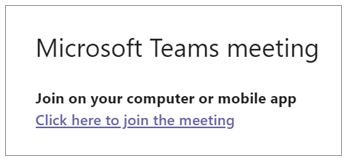
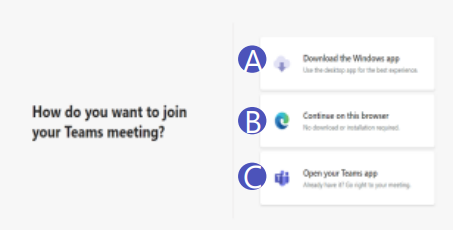
Select Click here to join the meeting in your meeting invite to be taken to a page where you can choose to:

1.) Download the app (A)

2.) Join on the Web instead (B); or

3.) Open in the Teams app if you have previously downloaded it before (C) 


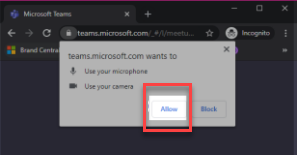
If you choose to Join on the Web, you will then see a screen which will request access to the microphone and camera on your computer. Select allow.

Then you will need to input your name and select the Join Now button. Please note that you will have the option to turn off your camera and/or mute yourself during the meeting (if needed) prior to and during the meeting.


To leave a meeting, select the Red Phone “Leave” button.


NOTE: Teams can be accessed through Mac, iOS, Android and Windows devices.


How to Call Into a Virtual Teams Meeting

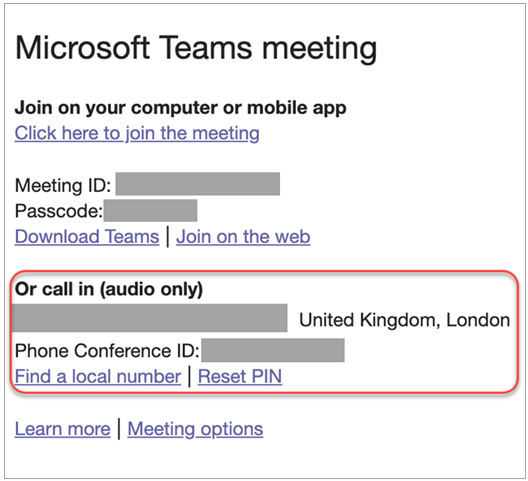
If you’re unable to use the Teams app or Teams on the web, you can join some meetings by calling a phone number. If there’s a phone number and conference ID in the meeting invite, just dial the number to join.

The number in your invitation may not be local to you. Select Find a local number to get one that is.


How to Access the Teams App

To get the best of Teams meetings on mobile, including audio, video, and content sharing, you’ll need to download and install the Teams mobile app. This app is available for download on both Apple iOS and Android.


TIP: If you would like to use the app, we recommend downloading the app before your meeting starts. It may take a few minutes to set up, depending on your internet connection.


LEARN MORE IN THE FAQ

Categories
Online Safety Tips

Learn More About Password Managers


Learn More About Password Managers

Dreaming up a different password for every site and service is the only way to keep your stuff safe online, but it’s also a gigantic nuisance. There’s one thing you can—and should—do to help: Get a password manager program. The three programs below all will help in lessening your password woes. Please see the break down below and choose one that would work for you.


But, wait—isn’t storing all your passwords in one place a terrible idea? It’s better than reusing easily remembered passwords everywhere. Password managers hide your information behind a master password that only you know.


Nothing is 100% guaranteed, but all three of these managers take the additional security step of never sending your master password over the Internet. They’re like a safe-deposit box that a professional keeps without knowing what’s inside, or even holding a key to open it.


In an age where more of our personal information lives, password protected, up in the cloud, we need defenses beyond antivirus software. Using a password manager is the next step.


These programs are becoming increasingly popular as hackers try to infringe on your personal data through passwords that can be cracked as easily as eggs. Here, I’ve put three of the most popular password managers to the test to help you choose the software that best suits your needs.


Dashlane

LastPass

1Password

Encryption and database

Like 1Password and LastPass, Dashlane uses the AES-256 encryption for its database. The key that encrypts the data is derived from the master password: the decrypted data is not stored on your device or Dashlane’s servers.


Dashlane gives you the possibility to keep encrypted data locally on one device, or to sync it between multiple devices via Dashlane’s servers. The encrypted data is hosted on Dashlane’s servers and is downloaded and decrypted every time.


Just like Lastpass, Dashlane lets you add two-factor authentication options to enhance the security of your master password.


Integration with browsers

Dashlane is compatible with Chrome, Firefox, Internet Explorer, and Safari. The application lets you import your saved passwords in Firefox or another browser.


Threat prevention

Dashlane sends security alerts directly to your devices when your passwords could be compromised. Dashlane also advises on the saved passwords.


Platforms

Dashlane is available for: Android | iOS | Mac | Windows


Encryption and database

With Lastpass, all your data is encrypted locally on your PC using AES 256 encryption, and you’re the only one who can unlock it. Your key doesn’t leave your device, and it’s never shared with LastPass.


The only downside is that the program requires an internet connection because the encrypted data is hosted on LastPass servers by default. Fortunately, you can access the data without an internet connection through the LastPass Pocket app.


One good thing is that LastPass supports two-factor authentication. It’s a  practical solution to add another layer of security to the master password.


Integration with browsers

LastPass is compatible with the following browsers: Chrome, Dolphin Browser, Firefox, Firefox Mobile, Internet Explorer, Maxthon, Opera, and Safari. The app also imports existing passwords from Firefox and Internet Explorer.


Threat prevention

LastPass offers a line of defense against phishing attacks, and it will not fill in forms hosted on malicious websites. The application also analyzes passwords to find out if they’re weak: LastPass will warn you when you’re using a weak password when logging into your accounts, and it’ll send you security alerts every time a new security breach is discovered.


Platforms

LastPass is available for: Android | BlackBerry| iOS | Linux | Mac | Windows | Windows Phone


Encryption and database

1Password uses AES-256 encryption but stores all your data locally on your computer. Even if you choose to synchronize your data with other devices, your master password, the unique decryption key, never leaves your computer or device. Decryption is always done locally and the decrypted data is never written on the disk.


With 1Password, using the cloud is an option, not a requirement. The software lets you synchronize data between devices via iCloud and Dropbox, or locally through Wifi. It’s an ideal solution for mobile users who are more cautious about the cloud.


Integration with browsers

1Password is compatible with Chrome, Firefox, Opera, and Safari. Extensions allow the app to automatically save new passwords entered in the browser and to automatically fill out forms with just one click.


Threat prevention

The Watchtower feature in 1Password identifies sites that are vulnerable to cyber attacks and tells you which passwords you should change. The app will tell you which sites to avoid, and gives you the green light to change your password after covering security holes.


Another good feature is that 1Password will also tell you if your passwords aren’t safe enough, are duplicate, or are obsolete so that you can update them.


Platforms

1Password is available for: Android | iOS | Mac | Windows | Windows Phone


All three password managers are very similar in many ways. On a security level, they all use the AES-256 security standard and store their data locally. In the end, your preference for one or another will boil down to the additional features of each program.


Dashlane’s mobile apps will give an experience (auto-completion, generating passwords) that’s very close to what is offered for PC thanks to a dedicated keyboard on Android and a full browser on iOS.


For LastPass, it’s the unparalleled variety of available platforms what will make the difference. Of the three, this is the only one that supports LinuxBlackBerry, Windows Mobile, Symbian, and Firefox OS, an ideal choice if you’re using one of these platforms. The app, however, syncs your encrypted data on its servers by default, a solution that will discourage those who are most skeptical about cloud security.


1Password is notable for how easy it is to use and its elegant design. If you fear that you’ll end up with something indecipherable, 1Password is a good solution. This is indeed the best password manager for less advanced users, and the function that lets you sync data between devices via Wi-Fi could attract savvy users not wanting their data copied to the cloud.


LEARN MORE IN ONLINE SAFETY

Categories
Online Safety Tips

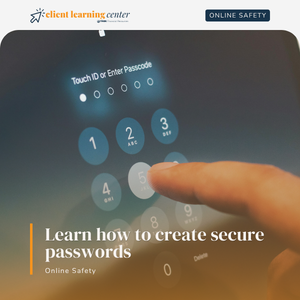
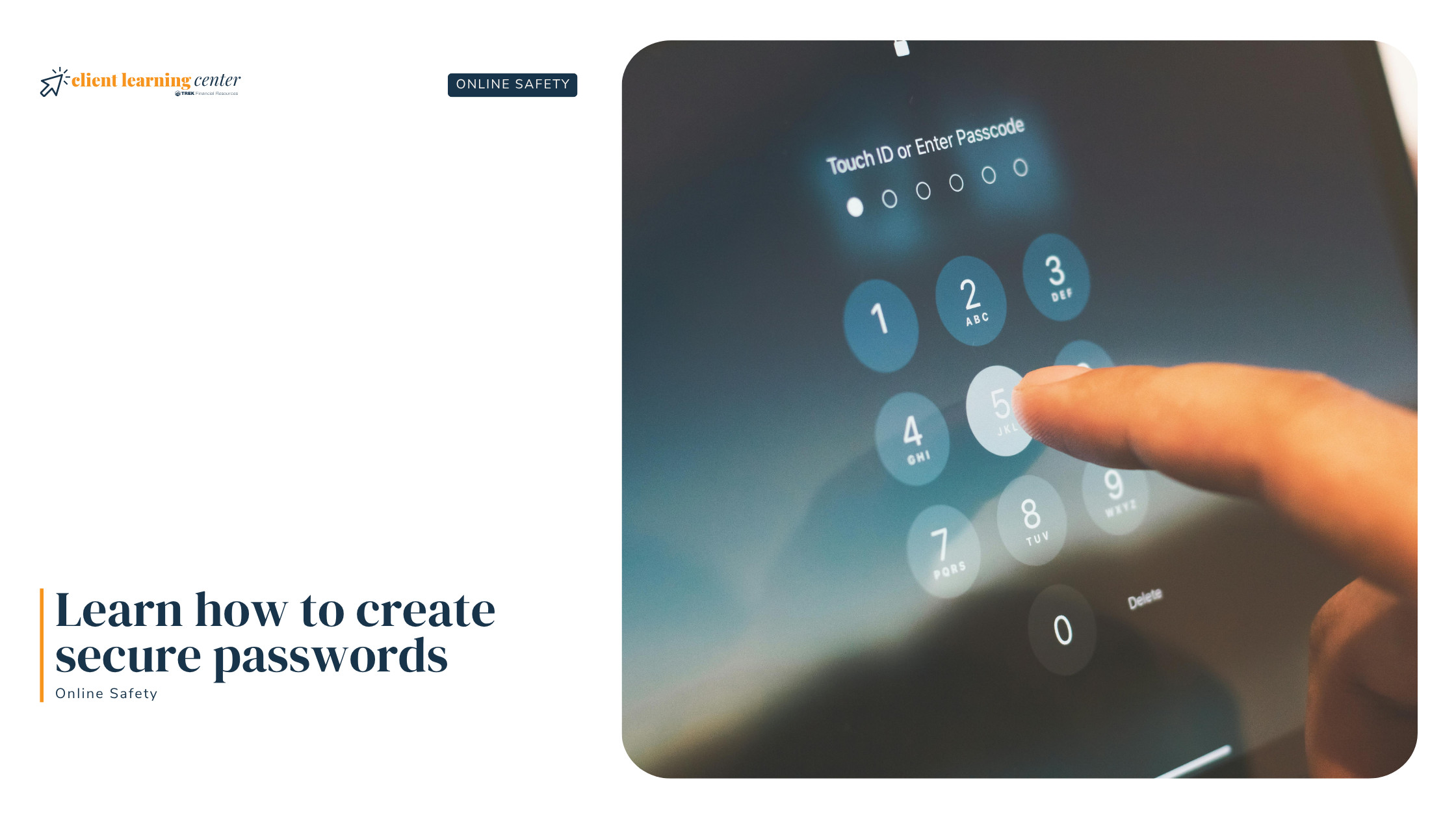
How to Create Secure Passwords


How to Create Secure Passwords

Choosing your password well and keeping it a secret can be key steps to safeguarding all of your online transactions. To create a password that is more difficult to guess, use a combination of letters and numbers for passwords you create, such as “4funcallC3po” or “Il9vemyd1g.” Certain passwords are easier to compromise, so try to avoid common pitfalls by creating secure passwords:


LEARN MORE IN ONLINE SAFETY

Categories
Online Safety Tips

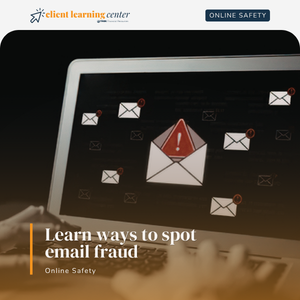
Ways to Spot Email Fraud


Ways to Spot Email Fraud

Many Internet scams today involve email messages that appear to come from a trusted source, but are not trustworthy. Additionally, email attachments can be harmful because they may contain viruses.


The below can be indications that an email is fake:

Here are some ways to protect yourself from email fraud:


LEARN MORE IN ONLINE SAFETY

Categories
Online Safety Tips

Guidelines to consider when it comes to online safety


Guidelines to Consider When it Comes to Online Safety

Start with these three important guidelines:


1.) Don’t share your User ID or password with anyone and don’t write it down. 


2.) Avoid accessing your account from public computers such as in an Internet cafe, library, hotel, etc. These public computers can be accessed by malicious users who may have been installed software in them to record keystrokes.


3.) When you are finished accessing your accounts always log off and close your browser.


LEARN MORE IN ONLINE SAFETY

Categories
Secure Email

How do I open a secure message?


How do I open my secure message?

Step 1: 

A secure email sent from your Financial Advisor will look like a regular email and include a button labeled “Read Secure Message.”


The subject line may also include the words “secure” or “encrypt.”


Before clicking on the “Read Secure Message” button, we recommend hovering your mouse over the button to verify that the link is directing to “https://outlook.office365.com/Encryption…” as shown in the screenshot below.

 
Then, click on the “Read Secure Message” button to open a secure Microsoft portal on your web browser.
 

Step 2: 

You will be prompted to verify your identity through two options.


Step 2: 

You will be prompted to verify your identity through two options.

 
This will send you an email with a passcode you can copy and paste into the page and click continue. The passcode may take a few minutes to arrive in your inbox:

Option 2: Sign in using your Microsoft or Google account.


Both methods are secure and ensure only you can access the message.

Step 3: Read and reply securely.


Once signed in, you’ll see your encrypted message. You can reply securely within the same portal – your reply will also be encrypted. When you reply to a secure message, your reply is automatically protected. No special steps are required. Simply type your reply and send.  Attachments you include will also be encrypted.


How to Avoid a Fraud Attempt

Always check the sender’s address → it should come from @trekfinancial.com.


Hover over the Read Secure Message button → the link should look like “https://outlook.office365.com/Encryption..”.


If in doubt, call your advisor or our office directly before opening.


LEARN MORE IN SECURE EMAIL